How to Check Seedance 2.0 Free Access Before Paying
Separate free inspection from paid video generation, prepare a Seedance brief, and read the billing rules before requesting a clip.
Find out what you can check for free before requesting a Seedance video. Paste this into your agent:
Set up https://monid.ai/SKILL.md, and then use Monid to discover and inspect Seedance 2.0. Explain the required inputs, resolution-based token rates, and download requirements. Do not generate a video or make any paid call.
Free inspection only · no “1 min setup” or “hrs saved” claim.
Creators and marketing managers searching for seedance 2.0 free need an answer before uploading assets: can you get even one finished clip without paying? The useful threshold is a downloadable video that meets your brief, rather than a page that lets you type a prompt.
Free access, free preparation, and free generation describe different outcomes. Treating them as the same thing leaves you comparing registration screens instead of checking what reaches your editing timeline.
This guide gives you a decision sheet for that check, a brief you can prepare without rendering, and the documented inputs and output of one paid generation route. We'll separate what you can inspect, what generation charges for, and when to stop before spending.
| Decision-sheet item | Finding for the route covered here | Next action |
|---|---|---|
| Access check | Discovery and inspection are free | Read the schema |
| Generation | Token-based billing by resolution | Require spending approval |
| Input | A content array is required | Prepare the shot brief |
| Returned artifact | Documentation names an MP4 video_url | Plan to download promptly |
This is a schema-based decision sheet, not a table of generated video results.
What does Seedance 2.0 free actually mean?
“Free” must describe the step you need to complete: preparing a prompt, reading a tool's requirements, or generating and downloading a video. Ask which of those steps the offer covers before investing effort in it.
Separate access from a finished clip
An account, a prompt box, and a rendered file are separate milestones. Your acceptance test should end with a saved video, because that is the object you can review, edit, and hand to someone else.
Write down your requirement before opening another page: “I need a downloadable vertical product clip with no payment.” That sentence prevents a free sign-up from being mistaken for completion of the task.
Separate a trial from repeatable production
A one-off evaluation and an ongoing publishing workflow need different decisions. For an evaluation, one usable clip answers your immediate question; for a workflow, you need to understand the charge for subsequent attempts and revisions.
Do not build a production budget around the word “free.” Record the billing unit, the generation settings, and the point where a request creates a charge, then decide whether the route fits your spending rule.
How to decide what a free video must include
Define the deliverable before comparing access routes. A written acceptance checklist makes it clear whether a tool has completed your task or merely offered a preview of the process.
Choose the destination and the shot
For a social product teaser, specify a vertical composition, one clear subject, and one visible action. For a presentation, specify the framing that fits the slide and enough empty space for the text you will add later.
Keep the first scene simple: a ceramic cup rotating on a pale tabletop is easier to assess than a sequence with several locations and characters. You can judge the subject, movement, and background separately without asking the first attempt to solve an entire campaign.
Choose what counts as usable
Set your review criteria before seeing the output. A product team can ask whether the object's shape stays consistent, whether the camera movement suits the brief, and whether the final framing leaves room for a caption.
These are editorial criteria, not promises about a model's accuracy. They give the reviewer a reason to accept a clip or request a revision, instead of spending again because the first result feels vaguely wrong.
Choose a stopping rule
If no payment is allowed, stop at the first paid generation step. Preparing a prompt does not create an obligation to submit it, and an uploaded reference asset does not justify changing the budget.
If payment is allowed later, make the decision explicit: approve a single request with specified settings before approving revisions. A list of alternate prompts is a planning document, not permission for an agent to render every option.
How to prepare a video without spending
Prepare the scene, references, and review sheet before using any generation service. This work produces a reusable brief even when you decide against the paid route.
Step 1. Describe one observable action
Write the subject, action, camera position, and lighting in plain language. For example: “A blue ceramic cup rotates slowly on a pale tabletop, fixed camera, soft window light, plain background.”
Step 2. Remove competing instructions
Choose one camera movement and one subject action for the first brief. Remove instructions that ask for incompatible framing or introduce a second scene, so the review can focus on a clear visual goal.
Step 3. Organize your references
Give each reference one job, such as opening composition, object appearance, or motion guidance. Keep a text description beside the file so another person can understand why it belongs in the brief.
Step 4. Write the review sheet
Use columns such as subject consistency, motion, framing, audio requirement, and decision. Leave the observation cells empty until a real clip exists; a planned result is not evidence of a generated result.
Step 5. Decide whether to submit
Compare the brief with your spending rule and the tool's input requirements. If generation requires payment and your budget remains zero, keep the brief and choose existing footage or a storyboard instead.
A useful preparation package also names the person who accepts the output and where the final file belongs. That avoids a second round of rendering caused by someone discovering the wrong orientation or missing audio after the clip has already been delivered.
For revisions, change one instruction at a time and keep the previous wording. This is an editorial recommendation: it makes the reason for a revision visible and keeps a later reviewer from confusing a changed brief with a model failing the original request.
How to inspect Seedance 2.0 with Monid
Monid covers free discovery and inspection, followed by paid Seedance generation; it does not provide free video generation through the route covered here. It is the OpenRouter for agent tools, with one key and one balance across tools.
An endpoint is a callable tool address. The Seedance 2.0 tool address, bytedance /v1/video/seedance-2.0, accepts text and reference media and bills generation according to its resolution-based token matrix.
For agents
Get a key at app.monid.ai, then paste the inspection-only prompt at the top of this guide into your agent. Keep the instruction against paid calls attached to the task.
For humans
Install the CLI and add your key using the standard setup commands:
npm install -g @monid-ai/cli
monid keys add -k <your-api-key> -l main
Step 1. Find the matching tool
Search the catalog, including unavailable tools so the status is visible. The exact Seedance 2.0 match was listed as stable on October 27, 2026.
monid discover -q "seedance 2.0 free" -l 5 --include-unavailable -j
Step 2. Read the required inputs
Inspect the exact tool before preparing a submission. content is required; duration accepts integers from 4 to 15 seconds, and resolution accepts 480p, 720p, 1080p, or 4k.
monid inspect -p bytedance -e /v1/video/seedance-2.0 -j
Step 3. Map the brief to settings
For the cup teaser, choose 9:16 if the destination is vertical and explicitly record the desired duration. The schema defaults to 5 seconds and 720p; setting the values deliberately makes the request easier to review.
Step 4. Stop before generation
Have your agent return the selected settings and billing unit as text. The inspection task is complete at that point; generation is a separate paid decision.
How do you read the price and returned fields?
Read the resolution selector together with the token unit, and treat the returned video link as a file to save promptly. Monid lists this tool as PER_UNIT_MATRIX, meaning the rate changes with the selected input setting.
Read all four resolution rates
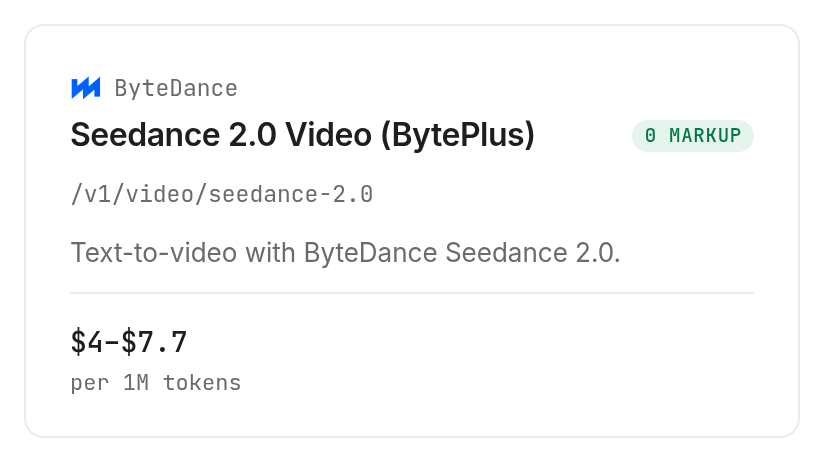
The live ByteDance listing gives the following rates per 1,000,000 tokens, Verified 2026-10-27: 480p and 720p cost $7.00, 1080p costs $7.70, and 4k costs $4.00. These are matrix tiers, not prices for completed videos.
The card shows a $4.00 to $7.70 range per 1,000,000 tokens, Verified 2026-10-27. Its lower bound is the 4k token rate; higher resolution uses more tokens, so the range cannot tell you the total cost of a clip.
Read what the tool returns
The inspection notes describe the following output. This table lists documented fields and behavior, not values from a generated clip.
| Documented item | What the tool returns or specifies | Workflow action |
|---|---|---|
video_url | Downloadable MP4 video link | Save the file after completion |
| Link lifetime | Approximately 24 hours | Avoid using it as permanent storage |
| Usage | Reference-video minimum token floors are reflected in returned usage | Preserve usage for billing review |
The notes also require public HTTPS reference URLs or asset:// references and exclude inline base64 URLs. They state that reference images and videos containing real human faces are rejected upstream, so a simple object scene avoids that input restriction.
Synchronized audio defaults to enabled, and the schema says that switch has no price impact. Choose audio according to the deliverable rather than treating the switch as a way to make generation free.
For request construction and broader model selection, use the separate Seedance integration guide. This guide's decision is narrower: whether to proceed from free inspection to paid generation.
When should you use something else?
Use another route when your required outcome is a video with no generation charge. This is the Monid blog, and we sell access to the paid tool described above; that buying model does not meet a zero-spend generation requirement.
Use existing footage or a storyboard when the immediate deliverable is a concept review. You can explain framing, pacing, and subject movement without purchasing a generated clip.
Use BytePlus documentation when your team wants to manage the provider integration directly. A shared tool balance is useful for an agent workflow, but it is an additional layer for a team whose task is specifically to build that direct relationship.
If the model itself is negotiable, the MiniMax and Seedance comparison organizes the choice around video requirements. Browse video-generation tools for current options; changing models still requires a separate check of each tool's billing rules.
Which tool fits each part of the job?
Use free inspection to make the access decision and reserve generation for an approved request. Monid supplies the tool connection, while your brief and review process determine whether the clip is useful.
| Use case | Best endpoint | Why? |
|---|---|---|
| Check input and billing rules | Inspect Seedance 2.0 | Read schema and matrix without generating; inspection is free |
| Generate an approved clip | Seedance 2.0, inspect only in this guide | Text and reference-media inputs; Verified 2026-10-27, per 1,000,000 tokens: 480p/720p $7.00, 1080p $7.70, 4k $4.00 |
Conclusion
You now have a decision sheet, a reusable shot brief, and the documented input and download requirements for a paid generation route. Repeat the free discovery and inspection check before approving a new workflow, and keep generation separate from preparation. No setup-time or hours-saved estimate is attached to this inspection-only process. Keep a zero-spend requirement as the stopping rule, so you finish with a clear decision and a brief you can reuse.
FAQ
Is Seedance 2.0 free through Monid?
Generation is paid through this route. Discovery and inspection are free, so you can read the input requirements and billing matrix without requesting a clip. The tool listing holds the current generation rates.
Can I get unlimited free Seedance 2.0 videos?
This route does not provide unlimited free generation. Each generation request uses token-based billing. Keep an agent restricted to discovery and inspection when no spending is authorized.
Do I need to write code to check Seedance access?
You can give the inspection-only prompt to your agent. The CLI commands are another way to perform the same discovery and schema checks, without building a video application.
How long can a Seedance 2.0 clip be?
This tool's schema accepts a duration from 4 to 15 seconds. Set the duration explicitly in the brief so an agent does not choose it on your behalf.
Can I turn an image into a video?
The schema accepts an image_url content item. Its roles include first_frame, last_frame, and reference_image; a last frame requires a first frame. Reference URLs must use a supported URL form.
Does turning off audio make the video free?
Turning off audio does not remove the generation charge. The schema describes generate_audio as having no price impact; choose it according to whether your deliverable needs generated sound.
Can I use the output commercially?
Rules differ by location, and you must review the applicable terms and rights for your intended use. Include the rights to reference assets and the planned publication context in that review.
Published October 2026.