How to Use a Brave Search API Key in Your Agent
Get a cited Brave AI search answer and web results into an agent using one Monid key.
Get a cited Brave search answer into your agent. Paste this into your agent:
Set up https://monid.ai/SKILL.md, then use Monid to ask Brave AI Mode a question and return the answer with its sources.
One prompt starts the search workflow.
A developer looking for a Brave Search API key often wants one practical thing: search results inside a script or agent. Copying a browser answer works for one question, but it leaves you to copy the source links and repeat the same steps for the next question.
Adding a separate integration also means managing another credential and deciding how the response reaches your application. An answer alone is not enough for a research workflow: you need its references alongside it so that someone can inspect the underlying pages.
This guide produces a small source table from a real Brave AI Mode search using Monid, the OpenRouter for agent tools. You'll set up one key, submit a question, and separate the answer from the returned references and web results. This route returns an AI answer and supporting search data; it does not reproduce the standard Brave organic search response.
The test returned the following public source references for a question about the James Webb Space Telescope. These are sources listed in the response, not a judgment that every claim in the generated answer is correct.
| Reference index | Returned title | Returned link |
|---|---|---|
| 2 | James Webb Space Telescope - NASA Science | https://science.nasa.gov/mission/webb/ |
| 6 | What Is the James Webb Space Telescope? | https://spaceplace.nasa.gov/james-webb-space-telescope/en/ |
| 11 | Telescope Overview - NASA Science | https://science.nasa.gov/mission/webb/science-overview/science-explainers/telescope-overview/ |
How to use a Brave Search API key with an agent
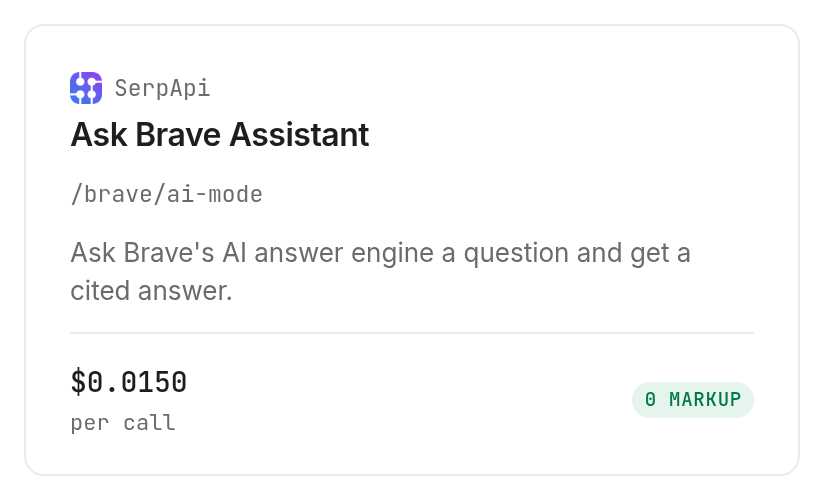
Use a Monid key to call SerpApi's Brave AI Mode through Monid, then pass its structured response to your agent. You do not need to put a separate Brave key into this workflow. The SerpApi tool page lists the tested /brave/ai-mode tool, which returns a generated answer, references, and web results.
An endpoint is a specific operation you can call. Here, the operation accepts a question and returns a search response. The related Brave search guide explores the broader key and search decision. The tested response is an AI Mode answer with sources; it is not a drop-in promise that every field from a different Brave search interface will be present.
What you need before you begin
You need an agent that can follow the setup prompt, or a terminal with the Monid CLI installed. You also need a Monid API key and a question to search. Keep the key in your agent's secret store or CLI configuration instead of pasting it into a document, issue, or source file.
Start with one public research question. A small first request makes it easy to inspect the answer and the source links before you connect the response to a larger process. This endpoint accepts a single question in q; the test below uses the telescope question shown in the table.
What the finished response contains
The test returned markdown, text_blocks, references, web_results, related_questions, and subsequent_request_token. It also returned search metadata and parameters. Keep the answer and the links together: the former is generated text, while the latter are places a reader can inspect.
A search result or citation does not establish that a claim is correct. For a report, open the relevant source and check the particular statement you intend to use. The endpoint gives your workflow a starting set of material, not a substitute for reviewing that material.
Why choose an answer with sources
A cited answer gives your agent both a concise starting point and links for checking it. For a developer, the useful boundary is the response format: a question goes in, and answer text plus source records come back in the same response.
Separate a search answer from evidence
For another cited search workflow, the Bing search guide covers returned snippets and references. The markdown field is convenient for displaying a readable answer. The structured text_blocks contain segments and citation references, which let an application preserve the relationship between a statement and the sources attached to it. The references collection gives the application a separate set of source records.
Do not treat citation numbers as proof on their own. Use them to locate the source, then compare the relevant source passage with the claim. If a source does not support a statement, remove or revise the statement in your own output. Store the query and the time of the run with your review so the result can be interpreted later.
Decide whether you need pages or an answer
A generated answer is useful when your next step is to review a summary. A set of web results is useful when your next step is to visit pages, select sources, or build a reading queue. This endpoint returns both in the tested response, but an application should choose deliberately which part it needs.
A search snippet is not the full page. If the job requires the contents of a selected page, use a separate reading step after checking its URL. A separate reading step can collect the full page. Keep that extra step explicit in your design so a short snippet is not mistaken for a complete document.
The 4 ways to bring search into a workflow
There are several ways to get from a question to a result that an agent can use. The right route depends on whether you need a generated answer, raw search data, or a human-reviewed list.
| Route | Billing or effort | Best for | Limit |
|---|---|---|---|
| Monid with Brave AI Mode | Per successful search | An agent that needs an answer and source records | This is AI Mode output, not the standard organic response |
| Browser search | Manual work | A person investigating one question | Copying results and sources takes repeated work |
| Direct integration | Separate integration | An application committed to one provider interface | Your application owns its integration and credential |
| Own processing script | Your own implementation | Transforming and storing a response | A script still needs a source of search data |
Choose the response before choosing the route
Write down the fields your application actually consumes. If the next component needs a title and link, design around those records; if it needs a readable answer with references, keep the generated answer and citation mapping together. A different source can use different names or group its results differently, so an adapter should handle each response explicitly.
On Monid, discover and inspect are free operations that help you see the available tools and their input schemas. The paid operation is the search itself. A single key and balance can serve the tools you select, while your application remains responsible for deciding what to do with the returned data.
Keep a manual review path
For a one-off question, a browser and a human reader can be enough. For repeated questions, use a structured response to make the same review process repeatable: save the question, collect links, and flag the answer for review. Automation removes copying; it does not remove the need to assess sources.
This article focuses on the measured AI Mode response and the fields a developer can carry into an agent.
How to get a cited Brave answer
Set up your key, inspect the search operation, and submit one short question. The following commands use the actual query-parameter interface for SerpApi's Brave AI Mode.
Step 1. Set up your agent or terminal
For an agent, get a key at app.monid.ai, give it the key securely, and paste this instruction:
set up https://monid.ai/SKILL.md
For a terminal, install the CLI and add the key to its configuration:
npm install -g @monid-ai/cli
monid keys add -k <your-api-key> -l main
The agent quickstart and CLI quickstart explain their respective setup paths. Keep the key out of the command history when your environment offers a secure secret mechanism.
Step 2. Find and inspect the search
Discover the available search operation and inspect its inputs before spending on a call:
monid discover -q "brave search api key" -l 10
monid inspect -p serpapi -e /brave/ai-mode
The required query parameter is q. Optional settings include country, language, and safeSearch; select these only when they matter to the task. A country setting is part of the context of a search, so save it with the query when comparing results from separate runs.
Step 3. Ask one question
Run one query and wait for completion. The CLI passes search inputs through --query, because the inspected schema describes query parameters rather than a JSON request body.
monid run -p serpapi -e /brave/ai-mode --query '{"q":"What is the James Webb Space Telescope?"}' -w
The test completed with HTTP 200 and one response. It took 17.621 seconds between creation and completion and returned 14 references, 20 web results, and three related questions. Search output can change between requests, so use these counts as the record of this run, not as a fixed quota or guarantee.
Step 4. Save and read the response
Use the run ID printed by the CLI to retrieve that run later:
monid runs get -r <run-id> -j
Save the JSON in your own storage if you need an audit trail. Read markdown for the answer, references for the cited sources, and web_results for the search records. Keep the exact question, run time, and source URLs with the output so a reviewer can reconstruct what was requested.
How to use the returned search results
The measured response supports a review table, a reading queue, and a follow-up question. Each use starts from a different field, so avoid flattening the entire response into one string before you decide what to retain.
Build a source review table
For each reference, keep its index, title, and link. The preview at the start of this guide shows three public NASA references returned by the test. The complete response included 14 references, including sources beyond those three. Select sources for their relevance to the particular claim, rather than treating the number of references as a quality score.
A useful review table can add your own columns for claim, reviewer decision, and notes. Those columns are editorial annotations made after the call; they are not fields promised by the endpoint. A row marked for review means a person still needs to read the linked material and decide whether it supports the claim.
Build a reading queue from web results
The test also returned 20 web_results. The observed records included titles, links, and snippets; some included a source and a date. An application can use the links to assemble a queue, but it should allow optional fields to be absent. The response included a result without a snippet, so a parser that requires every result to have one would discard useful links.
Remove repeated URLs in your own processing, preserve the original response separately, and do not assume that the order will remain unchanged on a later search. For a research assistant, present a link and its snippet together, then let a person select the pages worth reading in full. That keeps the search stage distinct from the reading stage.
Continue a question carefully
The response included three related_questions and a subsequent_request_token. The inspected schema accepts the token with a new q for a follow-up. Store it with the original search context if you use it; a follow-up is another search, with its own charge, and its results need their own review.
Related questions are suggestions, not evidence. Choose one only if it answers the reader's actual research need. A useful workflow can offer them to a human rather than automatically running every suggestion and expanding a small research task into an uncontrolled sequence.
Which search tool fits the job?
The tested Monid search tool fits a cited AI answer and a set of web results. Use the current tool listing to inspect inputs and billing before running a new search.
| Use case | Best endpoint | Why? |
|---|---|---|
| One cited AI answer and web results | serpapi /brave/ai-mode | Returns an answer, references and web results; $0.015 per successful search, Verified 2026-11-18. |
What a search costs
Discover and inspect are free. Browse the search tools for current options. The tested search is $0.015 per successful search, Verified 2026-11-18, on the tool page. The completed test cost that amount. The inspected billing description says a successful empty search is billed and HTTP errors and failed searches are free; we did not run an empty or failed search to test those cases.
Set a budget for repeated questions
Count each question as a separate search when planning a batch. Inspect the live price first, choose a small initial batch, and review the output before increasing the volume. A follow-up with a token is still another request, so include follow-ups in your budget rather than treating them as part of the original response.
When should you use something else?
Use a direct Brave integration when your application requires its specific interface or a standard organic search response. This is the Monid blog, and Monid routes the SerpApi operation described here; the tested operation is Brave AI Mode, so its generated answer and web results are not the same contract as a standard organic search response.
Choose another route for a different output
If your workflow needs full page text, add a page-reading operation after search. If it needs a deterministic dataset or a specific field that this response does not contain, choose a source that supplies that field. Do not infer it from the answer or make an absent value look like a returned value.
For other search workflows, compare the input and output requirements of each route. Compare the actual input, response fields, and billing shape for your use case before connecting it to production. Your own data requirements, not the presence of an AI answer, decide whether a tool is suitable.
Conclusion
You now have a repeatable way to send a question through Monid and receive a Brave AI Mode answer with source records. Start with one question, retain the query and response, and review the sources before using the answer in a report. This replaces repeated copying with a source list your team can inspect and reuse.
FAQ
Do I need a Brave Search API key for this workflow?
No. This workflow uses a Monid key to call SerpApi's Brave AI Mode through Monid.
Is the Brave AI search free?
The tested search is paid. It costs $0.015 per successful search, Verified 2026-11-18; discover and inspect are free. See the tool page for the current price.
Do I need to write code to search?
No. An agent can follow the opening prompt after you give it a Monid key securely; the CLI provides a terminal route for developers.
How many questions can I send at once?
The inspected operation accepts one q per search. For a list of questions, submit separate searches and budget for each one.
Are failed searches charged?
The inspected billing description says HTTP errors and failed searches are free. A successful search with no results is billed; those cases were not part of the example run.
Can I schedule a search?
Yes. Run the same command from your own scheduler and retain each run's query and time with its results; each successful search is billed.
Are the answers accurate?
The endpoint returns generated text and source records, not a guarantee of accuracy. Open the cited pages and check each claim before relying on it.
Published November 2026.