How to Use a LinkedIn Email Finder for Work Emails
Find someone's work email from their LinkedIn profile: give your agent a URL or a name and company, and get back found or not found, with a label.
Turn a list of LinkedIn profiles into a sheet of work emails, with the people it could not find marked. Paste this into your agent:
Set up https://monid.ai/SKILL.md, and then use Monid to find the work email for every person on this list of LinkedIn URLs (or names and company domains). Give me one table with a row per person: found or not found, the email, the title and company, a verification label, and what each lookup cost.
One prompt turns a list of people into a sheet of emails. 1 min setup · 2-4 hrs saved.
If you are a sales rep, a recruiter or a founder with a list of people to write to, you probably find their work emails one profile at a time: open the profile, check the Contact info panel, try the company website, guess a pattern. That is 3 to 5 minutes a person, so a list of 50 profiles eats two to four hours before you have sent anything.
A LinkedIn email finder is meant to shorten that, but the free ones work on the single profile you have open, and the paid ones tend to be seats on a sales platform you buy before you know how many of your people it can find. Neither hands you a sheet for the whole list with the misses marked.
This guide gets you that sheet. It uses Monid, the OpenRouter for agent tools: one key, one balance, every tool priced per call, run from inside your agent. Below is a real sweep of six people we ran on 2026-10-23, and what to do with each row. The short version:
| Input type | Lookups | Found | Not found | Cost (Verified 2026-10-23) |
|---|---|---|---|---|
| LinkedIn URL | 3 | 2 | 1 | $0.0144 |
| Name and company domain | 3 | 1 | 2 | $0.0072 |
| Total | 6 | 3 | 3 | $0.0216 |
It finds some people and misses others, and we show both. It does not guarantee a mailbox, and it is not a button on the profile page. You will:
- Hand your agent a list of LinkedIn URLs, or names and company domains.
- Get one table back: found or not, a trust label, and the cost, per person.
- Know what to do with each row, including the empty ones.
How to find work emails from LinkedIn profiles with Monid
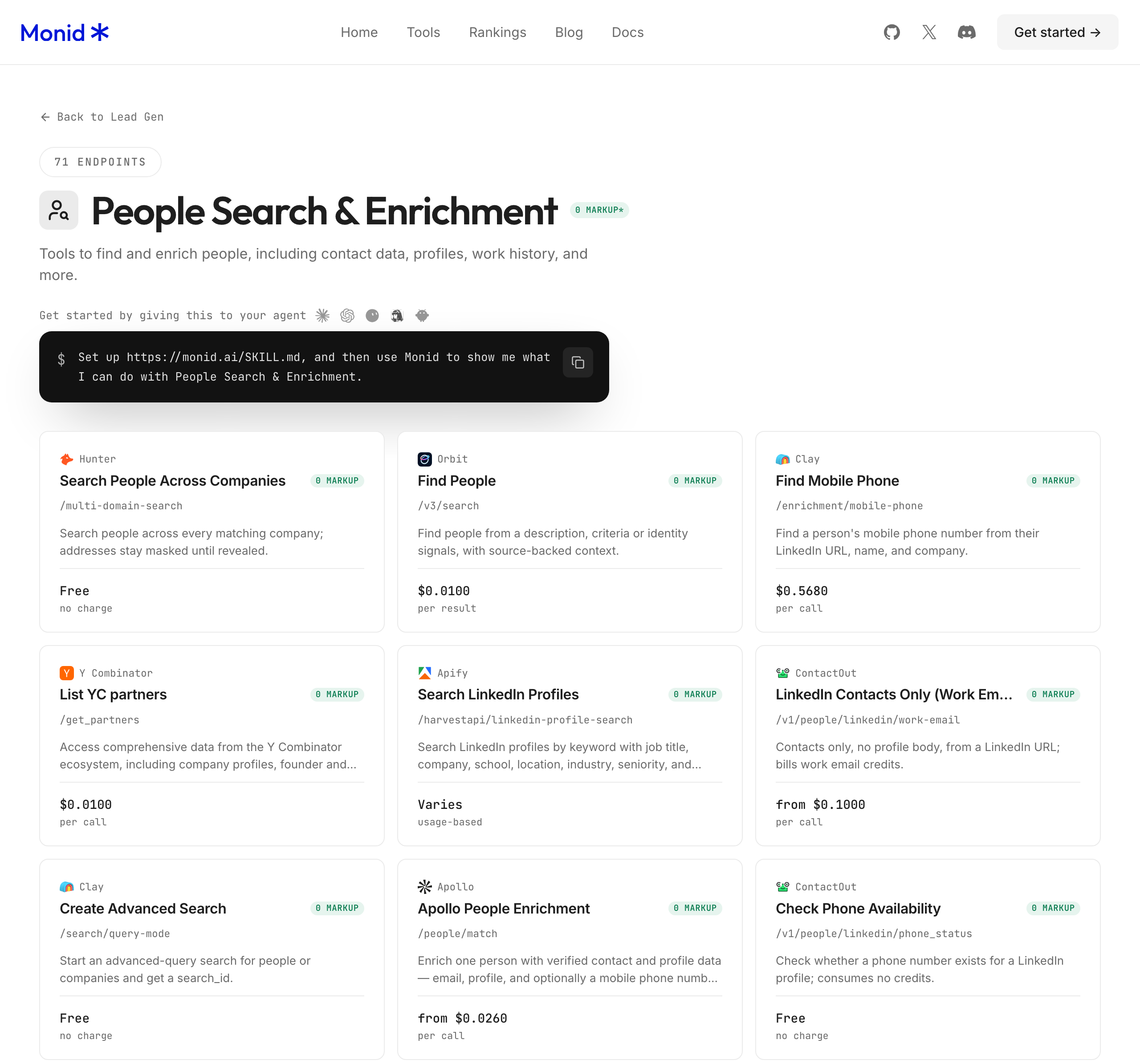
Monid is a catalogue of data tools your agent can call, billed per call. Here the agent calls an email finder once per person and keeps one row for each.
Step 1. Install and add your key
Get a key at app.monid.ai, then paste this to your agent and hand it the key:
set up https://monid.ai/SKILL.md
It learns the discover, inspect and run steps itself. More in the agent quickstart.
Or install the command line tool by hand:
npm install -g @monid-ai/cli
monid keys add -k <your-api-key> -l main
Setup takes about a minute once you have a key. Inspecting tools is free.
Step 2. Give your agent your list
Paste the list into the chat, one person per line. Each line can be either of two shapes: a LinkedIn profile URL, or a first name, last name and company domain such as example.com. Then use a prompt like this one:
Give this to your agent
Set up https://monid.ai/SKILL.md, and then use Monid to find the work email for every person on this list, mark each one found or not found, add a verification label for each address, show the cost of each lookup, and give me one table I can paste into a spreadsheet.A few choices are worth making on purpose:
- Use the profile URL when you have it. It names exactly one person.
- Use name and domain when you only have a name. The domain is the company's website address, which ties the lookup to one organisation.
- Test with 10 people first. Set a small limit when testing, read your own found rate, then run the rest.
- Ask for a row for every person. Otherwise you may get only the hits back and lose track of who is missing.
For this list the agent used the anyapi finder called Email Finding - QuickEnrich. This is its card on the Monid tool page, with its name, path and unit price:
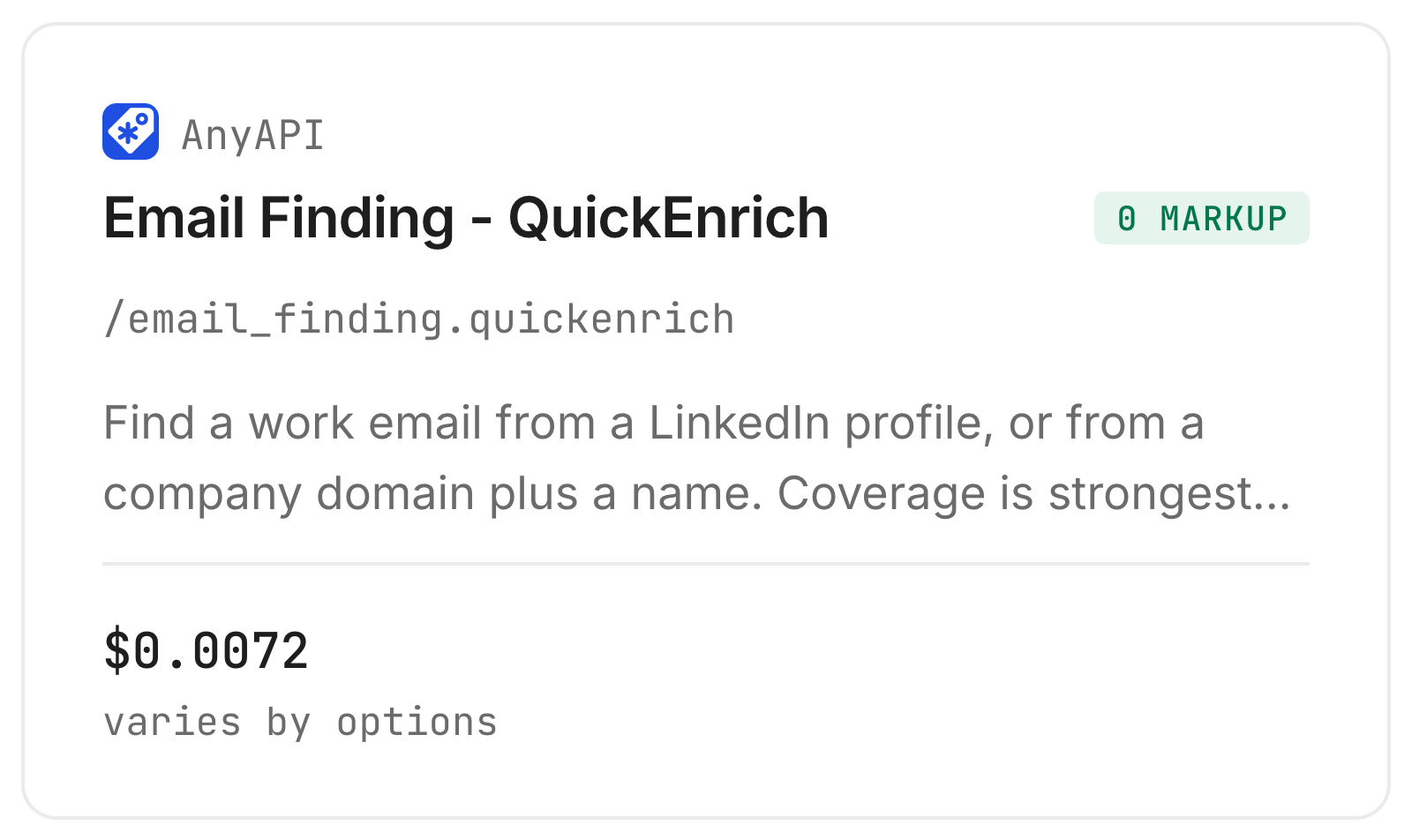
The card says coverage is strongest for small and local businesses and thin for large technology employers. Keep that in mind when you read the results.
Step 3. Run it
The agent looks the people up one at a time. Each lookup took 3 to 5 seconds, so six took under half a minute.
Our six were public founders of well-known companies, three given as LinkedIn URLs and three as a name and domain. The sweep returned 3 found and 3 not found. It billed $0.0216 in total: three found addresses at $0.0072, and $0 for each of the three misses (Verified 2026-10-23).
Step 4. Read and export the table
Here is what the agent handed back. The rows describe each input by type only and print no names or addresses:
| # | Input | Found | Verification label | Cost (Verified 2026-10-23) |
|---|---|---|---|---|
| 1 | LinkedIn URL | Found | Record dated 2026-09-15; free status check: no work email on file | $0.0072 |
| 2 | LinkedIn URL | Found | Record dated 2026-09-15; free status check: email exists, Verified | $0.0072 |
| 3 | LinkedIn URL | Not found | None | $0 |
| 4 | Name and company domain | Found | Record dated 2026-09-15 | $0.0072 |
| 5 | Name and company domain | Not found | None | $0 |
| 6 | Name and company domain | Not found | None | $0 |
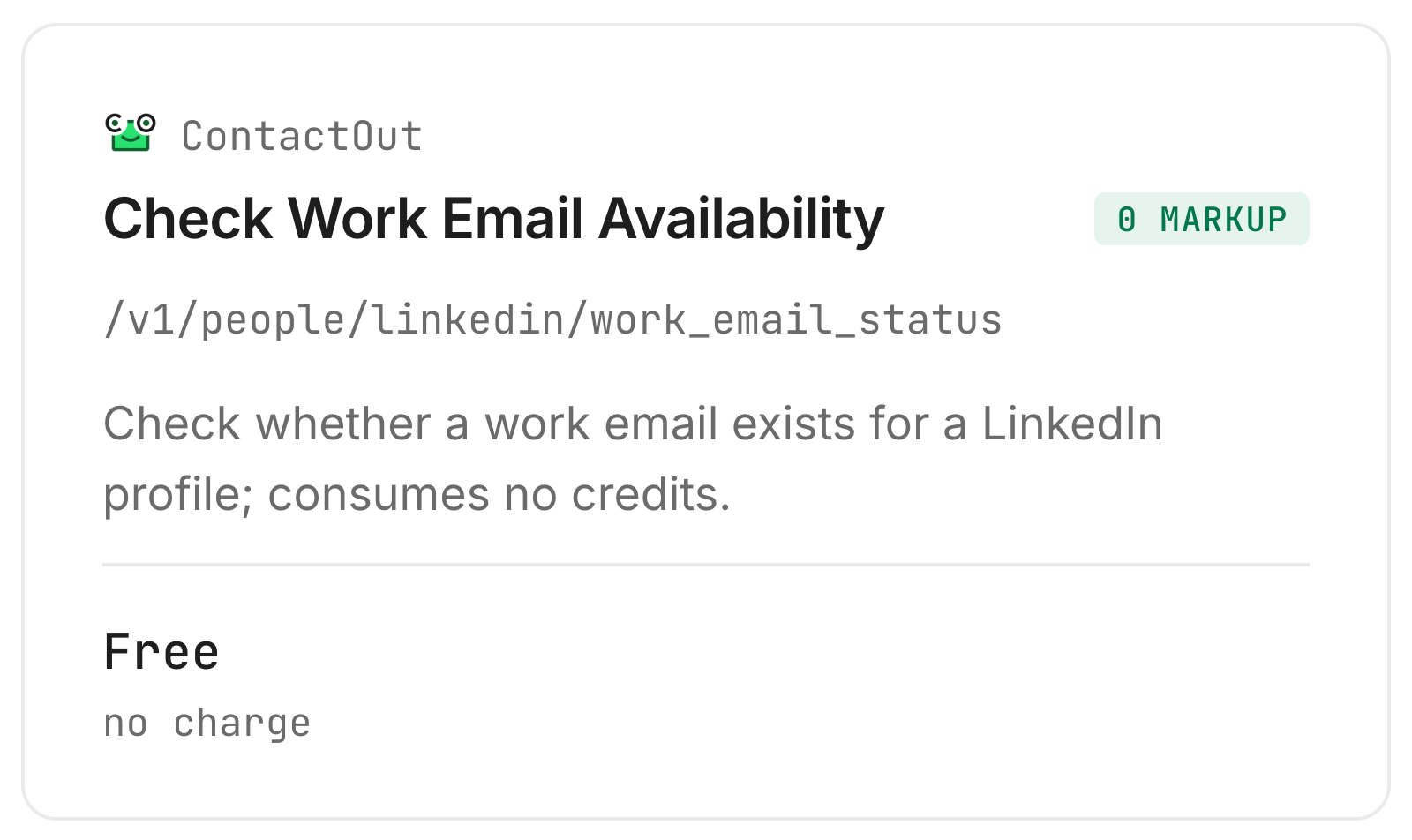
The labels on rows 1 and 2 come from a second, free lookup. ContactOut has a status check that says whether a work email exists for a profile, and it costs nothing. This is its card:
Ask for a CSV and you get a file for your spreadsheet. This is the sheet's shape for a longer list, with invented placeholder rows shown for shape only:
| Person | Input | Found | Title | Company | Label | Cost (Verified 2026-10-23) | |
|---|---|---|---|---|---|---|---|
| Sample Person A | LinkedIn URL | Found | a@example.com | Head of Sales | Example Co | Verified | $0.0072 |
| Sample Person B | Name and domain | Not found | Example Co | None | $0 |
How do you read the results?
Read the table row by row: found or not, what label the row carries, and who is missing. The advice in the last list is our editorial reading, not a measured effect.
Does a found email mean a good email?
No. A found email is a candidate. The three found records carried the same verified date, 2026-09-15, so it is a data date and not a test of that mailbox on the day you ran it. Send found addresses through a verifier before a sequence. Our post on bounce rates and spam traps covers what a bad address costs you.
Can two tools disagree about the same person?
Yes. For row 1 the finder returned an address and ContactOut's free status check said it had no work email for that profile. For row 2 both agreed and the status was Verified. Each service has its own records, so a disagreement is a reason for a second look.
What does a miss tell you?
That this finder has nothing for this person, which is not the same as the person having no work email. Three of six came back not found, and our six were well-known founders, the group the card calls thin. Keep the missing rows, so the list shows who needs another route.
What should you do with each row?
- Found, with a Verified status. Move it to your verifier and then your sequence. This is the row the exercise was for.
- Found, with no status or a "no email on file" label. Treat it as a guess. Verify it before you send, and start with a small batch so a bad address costs you little.
- Not found. Try the same person with the other input: a URL if you used a name, a name and domain if you used a URL. If that also misses, look at the company site, ask for an introduction, or message the person on LinkedIn.
How much does a LinkedIn email finder cost, and is there a free one?
On the finder we ran, a found address costs $0.0072 and a miss costs nothing, so a list of 100 people costs between $0 and $0.72 depending on how many it finds (Verified 2026-10-23). There is no monthly plan and no minimum top-up. Six lookups is not a basis for budgeting, so run 10 first and read your own rate.
Can you do it for free?
For a handful of people, yes. The Contact info panel and free extensions work on the profile you have open and do not take a list. ContactOut's status check above is free, and it answers a narrower question: whether a work email exists, not what it is.
Can you build it yourself?
For a list it stops being worth the hours, and a guessed address such as first.last@company.com that bounces costs sender reputation. A second finder to compare against is Apollo's email finder, which also starts from a name and company.
How do you do this in your own code?
Call the finder once per person, check found, and store one row per person per run. The table above needs none of this.
Inspecting is free:
monid inspect -p anyapi -e /email_finding.quickenrich
The body takes either linkedinUrl, or companyDomain with firstName and lastName:
monid run -p anyapi -e /email_finding.quickenrich -i '{"linkedinUrl":"https://www.linkedin.com/in/<public-id>"}' -w
monid run -p anyapi -e /email_finding.quickenrich -i '{"firstName":"<first>","lastName":"<last>","companyDomain":"example.com"}' -w
A hit comes back as {"found": true, "data": {...}} with the email, name, title and company. A miss comes back as {"found": false, "data": null, "reason": "not_found"} with a cost of 0. The free status check takes the profile URL as a query:
monid run -p contactout -e /v1/people/linkedin/work_email_status --query '{"profile":"https://www.linkedin.com/in/<public-id>"}' -w
Hunter's finder is the other route from a name:
monid run -p hunterio -e /email-finder --query '{"domain":"example.com","full_name":"<first last>"}' -w
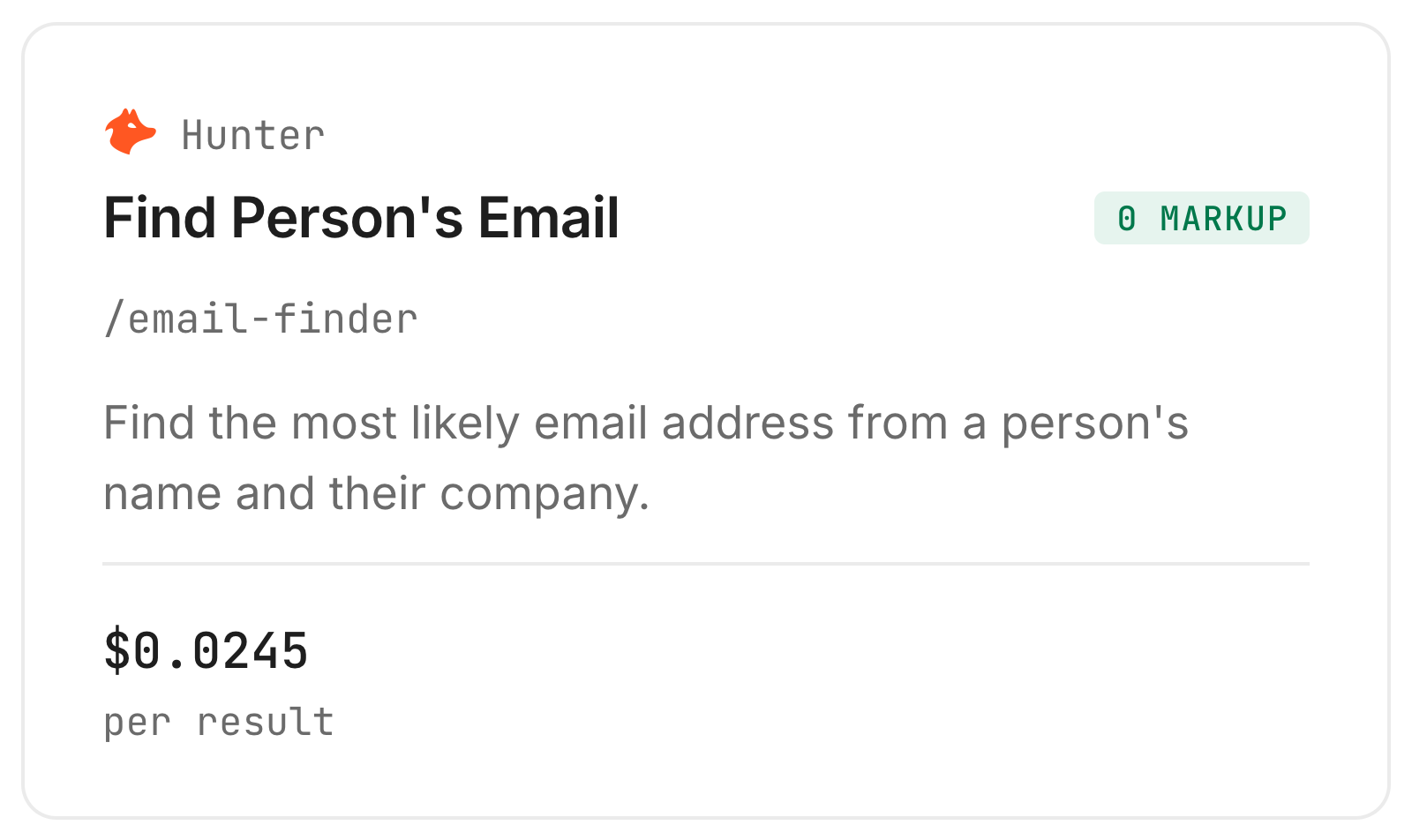
Our Hunter walkthrough covers the domain-first version of the same job.
Loop it over a file with one profile URL per line:
mkdir -p out
i=0
while read -r url; do
  i=$((i+1))
  monid run -p anyapi -e /email_finding.quickenrich -i "{\"linkedinUrl\":\"$url\"}" -w > "out/$i.json"
done < profiles.txt
Read each file in out/ with json.load (the run object has output.found, output.data and cost.value) and write every row to your CSV, including found: false. Four things from our runs matter:
- A miss bills nothing here. The three misses showed
cost0. Other finders differ, so read the billing note ininspectbefore you loop. - The verified date is shared.
emailVerifiedUtcwas 1789430400, which is 2026-09-15, on all three found records. Do not read it as the time of a check. - Fields vary between records. One found record had no
address,phoneorphoneType, while the other two did. Read each field with a default. - A high score is not a source. In an earlier run Hunter's finder returned an address with
score80,source_type"generated" and an emptysourceslist, while itsverificationblock said valid. Treat a generated address as a guess.
Which endpoint for which job?
| Use case | Best endpoint | Why? (prices Verified 2026-10-23) |
|---|---|---|
| Loop over a list of URLs or names | anyapi/email_finding.quickenrich | Takes linkedinUrl, or companyDomain plus names, billed per call, a miss billed $0 in our run, ran in this guide. $0.0072 |
| Check whether a work email exists for a profile | contactout/work_email_status | Answers yes or no with a status and no address, ran in this guide. Free: $0 |
| Find an email from a name and a company | hunterio/email-finder | Returns email, score, source type and verification, billed per result and only when found. $0.0245 |
| Get the email behind a profile from ContactOut | contactout/work-email | Returns work emails with a status, inspected only, a profile with no work email answers 404 and costs nothing. $0.10 default |
| Get a deliverability score with the email | anyapi/linkedin.email | Takes profileUrl, promises deliverability and a quality score, inspected only, a per-result price with a flat fee. $0.011 flat fee |
Prices are Verified 2026-10-23. Loop over a list with the first row and put the free check beside it. The last two rows are inspected, not run: the ContactOut lookup is above $0.03 a call and the AnyAPI one bills a flat fee. All endpoints are listed at monid.ai/tools.
When should you use something else?
You need one email, once. A free extension or the Contact info panel does that with no key.
You need a guaranteed mailbox. No finder promises one. A verifier tells you more, and a small test send tells you most.
Your list is large technology employers. The endpoint's card says its coverage is thin there, and half of our six well-known founders came back not found.
You live inside a sales platform already. A seat keeps sequences, CRM and lookup on one screen. A per-call lookup fits when the email is one step in a flow you run from an agent or code.
One limit of ours: this runs one person per call, so it is a loop, not a bulk upload. And the disclosure: we resell these endpoints. Whoever you buy from, keep a row for every person and verify before you send.
Conclusion
You now have a way to turn a list of LinkedIn profiles into a sheet of work emails with the misses marked: one lookup per person through Monid, $0.0072 for each address found on the endpoint we ran and $0 for a miss, one key for this and every other tool, about a minute to set up and ready inside your agent whenever you have a list (Verified 2026-10-23). In our six-person sweep it found 3 and missed 3. How we estimated the time saved: finding a work email by hand means opening a profile, checking Contact info and trying the company site, about 3 to 5 minutes each, so 50 profiles is 150 to 250 minutes, or 2 to 4 hours, while the 1 minute is the install, key and first call. Keep a row for every person and verify each found address, and you can send to the reachable people and spend your own time on the rest.
FAQ
How do I find someone's email from their LinkedIn URL?
Send the profile URL to a finder and read the answer for an email. Through Monid, anyapi/email_finding.quickenrich takes a linkedinUrl and returned a work email with the person's title and company for two of the three URLs we tried, and nothing for the third.
Is there a free LinkedIn email finder?
Free extensions and the Contact info panel cover a few profiles. For a list, a lookup through Monid costs $0.0072 per address found with no monthly plan and no minimum (Verified 2026-10-23), and ContactOut's check for whether a work email exists costs $0.
Can I get an email from a name and a company instead of a URL?
Yes. anyapi/email_finding.quickenrich takes a first name, last name and company domain, and Hunter's email-finder takes a name with a domain or company. In our sweep the name and domain route found 1 of 3 people.
Are emails from a LinkedIn email finder accurate?
Not always. A found address is a candidate: one finder returned a generated address with a high score and no source, and two tools gave different answers for the same profile. Verify before you send.
Does it cost anything when no email is found?
Not on the finder we ran: the three misses billed $0 (Verified 2026-10-23). Hunter's finder and ContactOut's work-email lookup also bill nothing on a miss according to their inspect notes, but read an endpoint's billing before you loop.
Do I need to write code?
No. Paste your list and the prompt into your agent and it builds the table. The code section is for people who want the loop in their own script.
How many people can I look up at once?
One person per call, so a list is a loop your agent runs for you. At 3 to 5 seconds a lookup, 100 people take five to eight minutes.
Is it legal to email people found this way?
Rules on contacting people at work differ by country and by how you use the address. Check the rules where you and your recipients are before you send.
Published October 2026.