How to Use a Tool for Price Comparison Shopping
Compare product prices across merchants and build a repeatable process for checking offers and tracking changes.
Compare offers for a specific product. Paste this into your agent:
Set up https://monid.ai/SKILL.md, then help me compare prices for a product. Ask for the exact model and country, inspect the price comparison tool, and explain what still needs checking before I buy.
One prompt starts a repeatable comparison.
Purchasing managers and ecommerce operators searching for a tool price comparison often start with a stack of merchant tabs. Even one product can have several offers, each with a different title, seller or delivery condition.
Copying the numbers into a sheet makes the offers easier to see, but it does not establish that they refer to the same model or that the lowest displayed price is the final amount. Repeating that work for a product list also makes it hard to tell a genuine price change from a different listing.
This guide builds a practical comparison process around Monid, a tool layer for agents. Its matching tool advertises cross-merchant price summaries; it does not provide the complete purchase decision sheet or a price history in its declared schema. We'll define the product, compare the available summary, and add the checks a buyer still needs.
The decision sheet you want: product and variant, seller, item price, currency, shipping, availability, time checked and final cost. This is a checklist, not a sample result. The tool description advertises lowest, highest and average prices; the inspection does not specify response field names or a merchant-level table.
What is tool price comparison?
A price comparison brings offers for the same product into one view so you can decide which offer deserves a closer look. The important word is same: a base model, a bundle and a refurbished version are different purchase choices even when their names overlap.
Start with the product identity
Write down the manufacturer, model number, size or capacity, and condition before looking for offers. If a product comes in several configurations, include the distinguishing variant in the search rather than relying on a broad category such as headphones or drill.
A useful search gives the comparison service enough context to find relevant offers while leaving room for different seller descriptions. Keep the original product identifier beside the returned comparison. That makes it easier to revisit a result later and spot when a listing has changed.
Separate an offer from its final cost
The visible product price is only one part of a purchase decision. Shipping, taxes, delivery location, stock and return terms affect what a buyer actually receives and pays. A summary of low, high and average prices does not establish those details for a particular offer.
Decide which details matter before you sort. For a business purchase, a delivery date and the number of units available can matter as much as the item price. For a personal purchase, warranty and condition can change which listing is acceptable. Record those checks separately instead of treating a single low number as the answer.
Decide what a comparison should answer
A one-time buyer wants a shortlist and a final checkout price. A category manager wants comparable snapshots across a product list. A pricing analyst wants a series of observations over time and a rule for reviewing changes. These jobs share a search, but they need different outputs.
For a closer look at the distinction between a low listed price and a usable purchase price, see the Google Shopping lowest-price guide. It explains why matching and offer details matter before you act on a minimum.
How to choose a price comparison shopping tool
Choose a price comparison shopping tool by the decision it must support, then check whether its inputs and outputs fit that decision. An attractive list of numbers is not enough if the list cannot identify the product or support the destination and currency you need.
Check scope before coverage
First define the market and product category. A tool that describes a Nordic comparison source and Google Shopping does not promise every seller in every country. Ask whether the market you care about is covered and whether the results identify the exact variant you intend to buy.
Next decide whether you need individual offers or only a range. Lowest, highest and average values can frame a review, but they do not by themselves tell you which merchant has stock or what delivery costs. An offer list and an aggregate summary answer different questions.
Check how the tool fits your workflow
If you compare a single purchase occasionally, a visual shopping interface gives you a place to inspect product images and seller details directly. If your task starts with a list, an agent or script can carry the same product description through a repeatable process and save the returned information for review.
For ongoing monitoring, look for storage, a schedule and a notification rule. A comparison request is one observation; a tracker requires observations at multiple times. Decide who receives an alert and what change merits attention before automating it.
Make the limits part of the decision
Compare tools using the same inputs and the same decision sheet. Review matching accuracy yourself on a small set of products with distinct model numbers. Check whether each offer includes the details your purchasing policy requires, and keep an exception queue for ambiguous matches.
Do not interpret missing offers as proof that a seller has no stock. A comparison describes the offers available to its source for that request, not a complete census of the market. A buyer who needs a particular merchant or contract price should check that source directly.
How to compare product prices step by step
Use a precise product description, inspect the available tool, and treat its comparison as the start of a purchasing review. Monid connects agents to tools under one key and balance; an endpoint is the specific operation the agent calls.
Step 1. Define the item and market
Choose one product and write its model, variant and condition. Add the country you want to compare, and note any requirements such as a new item, a specific seller, or delivery by a particular date.
Keep a separate field for each requirement in your own sheet. A product query is a search description, not a guarantee that every result satisfies the condition. Starting with one item gives you a manageable comparison to review before expanding the work to a larger catalog.
Step 2. Set up your agent
Get a key from app.monid.ai and give your agent the prompt at the top of this guide. The agent can discover and inspect tools before you decide whether to authorize a paid request. The agent quickstart explains the setup.
For a command line workflow, install the CLI and add your key:
npm install -g @monid-ai/cli
monid keys add -k <your-api-key> -l main
The CLI quickstart covers key setup. Keep the key in your own environment, not in a shared document or a product sheet.
Step 3. Inspect the comparison
Ask the agent to discover a product price comparison and inspect Strale's price comparison. Its declared input is a required product string and an optional country string. The description says it compares merchant prices through PriceRunner in the Nordic region and Google Shopping, and returns lowest, highest and average prices.
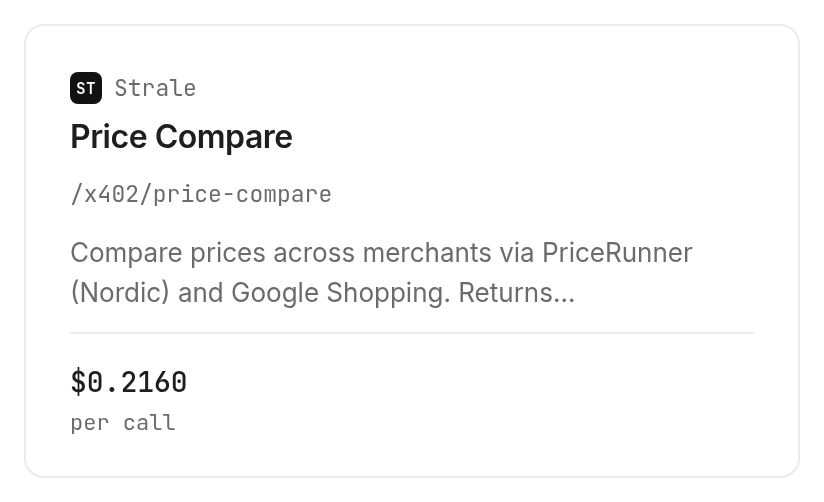
The listed price is $0.216 per call, Verified 2026-11-17. Discover and inspect are free; a run is the paid step. The inspection does not state how failed or empty responses are billed, so use the current tool information and your account's billing record when planning a workflow.
Step 4. Review and complete the sheet
Ask your agent to preserve the product and country alongside the comparison and to identify any information missing from your decision sheet. Then open the relevant merchant offer yourself to check the exact variant, stock, delivery and final amount.
The tool covers a comparison summary. It does not declare merchant-level fields, shipping, a checkout total, stored history or alerts. Fill those gaps through your own checks and storage, and mark a row incomplete until its purchase conditions are known.
How to read a comparison before buying
Read the price range as context for a review, not as an instruction to buy at the lowest number. The lowest, highest and average values described for the comparison are summaries; the inspected specification does not name their JSON fields or establish the number of offers behind them.
Match before ranking
Start with identity. Confirm the model number, configuration and condition on each offer you consider. If an offer is a bundle, write down the included items and compare the bundle as its own product. If the product identity is unclear, leave it out of the ranking until it is resolved.
A comparison of unlike items can produce a convincing but useless minimum. The same is true of quantities: a single unit and a multipack need a common unit before their prices can be compared. Preserve the original offer price alongside your calculated unit price so another reviewer can reproduce the calculation.
Compare the amount you will pay
Add the applicable delivery charge and any other costs shown at checkout to the item price. Keep currency explicit and compare offers in the same currency. If conversion is necessary, record the rate and the time used rather than silently combining unlike amounts.
A low listed price can still be the best choice after these checks, but the decision belongs to the completed offer, not the headline number alone. Note the seller and the time checked so the buyer can return to the same listing and confirm that it remains available.
Keep uncertainty visible in your sheet
Use a status such as ready to review, missing shipping, unclear variant or unavailable. These are your own workflow labels, not fields promised by the comparison tool. A missing value stays missing until a source supplies it; do not replace it with zero or infer it from another offer.
For a team, assign the final review to a person and retain the link to the merchant listing. This gives the person approving a purchase a way to check the conditions without reconstructing the entire search. It also makes a disagreement about a price traceable to an offer and a time.
How to build a Google Shopping price tracker
A Google Shopping price tracker needs a series of dated observations, a consistent product identity and a rule for acting on change. A single price comparison is a snapshot, not a tracker. The Google Shopping price tracker guide goes deeper on setting up the monitoring workflow.
Store each observation separately
Create a record for each product and check time. Store the input description and country along with whatever comparison values actually arrive, then retain a reference to the source. Do not overwrite yesterday's observation with today's value: overwriting removes the evidence needed to see a trend.
Use the same product description across checks, and record any change to the description as a change in the measurement. A new variant or a different market belongs in a separate series. Otherwise, a change in the product being searched can look like a change in price.
Set a review rule
Choose a threshold that reflects your task, such as a target price or a change that merits a manual review. Apply the rule only after checking that the observations refer to the same product, currency and comparable conditions. Treat a missing response as a missing observation, not as a price drop.
A scheduled process needs your own scheduler, storage and notification mechanism. The comparison tool described here does not declare those features.
Budget for repeat checks
A repeated request incurs the listed per-call charge each time it runs. Estimate your budget from the number of products and the frequency you choose, then set a limit in your own scheduler. A longer interval reduces the number of observations; a shorter interval gives you more frequent opportunities to review a change.
Review the current tool catalog before scheduling. Start with one product and inspect the information returned before committing to a larger list. Your budget should also account for the work of resolving unmatched variants and checking purchase conditions.
When should you use something else?
Use a visual shopping service such as Google Shopping when your immediate job is to browse one product and inspect individual listings yourself. Use a dedicated tracking workflow when you need built-in history or alerts without assembling a scheduler and storage.
This is the Monid blog, and Monid provides access to the Strale tool described here. Its inspected description offers price summaries, while its schema does not declare individual merchant offers or a complete tracker. That is a real boundary for a buyer who needs a checkout-ready shortlist or a record of every historical price.
Choose a manual review for a consequential purchase
For a purchase with strict delivery, warranty or seller requirements, go to the merchant's offer and confirm those requirements directly. A summary can help frame the search, but a buyer still needs the conditions attached to the specific item. Keep the final approval with the person responsible for the purchase.
Choose a dedicated tracker for built-in history
If the main requirement is an alert whenever a known item reaches a target, look for a tracker with a history and notifications that fit your workflow. Ask whether it tracks the precise variant and market you need. An agent workflow is useful when comparison is one step in a larger process you control, but that process must supply its own tracking components.
Which tool fits this job?
The inspected comparison is suited to a product query and an advertised price summary. It is one part of a wider purchase or monitoring workflow.
| Use case | Best endpoint | Why? |
|---|---|---|
| Compare an identified product | Strale price comparison | Inspect: product required, country optional; advertised low, high and average. $0.216 per call, Verified 2026-11-17. |
Keep the decision sheet outside the request
Store product identity, the observations you receive and your manual offer checks in a sheet or database you control. The tool's inspected input does not define a batch list, so plan around one product query at a time rather than assuming a bulk operation.
Recheck before a purchase
A comparison is tied to a point in time. Return to the merchant listing before committing funds, and repeat the check if the decision is delayed. That final review is where the buyer confirms the exact amount, availability and terms that apply to the order.
Conclusion
You now have a repeatable way to define a product, inspect a comparison, and complete a purchase decision sheet with the checks the tool does not provide. Add your own history and schedule if the task is tracking rather than a one-time comparison. The best tool is the one that supplies the evidence your decision needs, so you can choose an offer with its real conditions in view.
FAQ
Can a price comparison shopping tool find the best offer?
It can help identify a price range or offers to review, but the best offer depends on the exact product, delivery, availability and terms. Check those conditions on the merchant listing before buying.
Is a Google Shopping price tracker the same as a comparison?
No. A comparison describes a point in time, while a tracker stores observations across time and applies a review or alert rule. The comparison tool here does not declare a history or notification feature.
Is it free to inspect the tool?
Yes. Discover and inspect are free on Monid; running the comparison tool is billed per call at the listed price.
Do I need to write code?
No. You can give an agent the product, country and review instructions in plain language. A scheduled tracker still needs a way to store observations and trigger checks.
How many products can I compare at once?
The inspected input declares one required product string and an optional country string. It does not declare a batch input, so structure a list as separate product queries and account for each call.
What happens if a comparison fails or returns no offers?
Treat it as a missing observation and review the product description and market before trying again. The inspected information does not state the billing treatment for failures or empty results.
Can I schedule price checks?
Yes, with your own scheduler and storage. The comparison tool itself does not declare scheduling, history or alerts; your workflow must provide them.
Are price comparison checks legal?
Rules differ by location and use. Check the rules that apply to your activity and the sources you use.
Published November 2026.