How to Convert PDF to Markdown for Your Notes
Convert a PDF into a Markdown file, choose text extraction or OCR, and review headings, tables and links before saving your notes.
Convert a PDF into notes you can edit and review. Paste this into your agent:
Set up https://monid.ai/SKILL.md, and then use Monid to inspect the PDF to Markdown converter. Explain the billing unit before asking me to approve conversion. Use my PDF URL, preserve links, leave OCR off for the first text-based document, and help me save and review the Markdown.
Budget 1 min setup after getting your key. No hrs saved estimate; document review determines the work.
Researchers and developers searching for PDF to Markdown often start by copying passages into a notes editor. The first wall is structural: two columns on a page have to become one reading sequence, while a table still needs its columns.
Pasting text solves the immediate selection. It does not give you a repeatable conversion recipe, a preserved source reference, or a clear decision about whether the resulting notes are complete.
This guide takes you from a PDF to a reviewable Markdown file. We'll identify the text source, choose conversion settings, and separate the extracted document from your own notes so you can correct it without losing its origin.
Your finished package: a source PDF, a saved .md file, and a review manifest. The manifest records the source location, conversion mode, output filename, headings checked, tables checked, and your acceptance decision. Those are fields you maintain, rather than a converter's quality score.
What is PDF to Markdown conversion?
PDF to Markdown conversion extracts a document's content and expresses its structure as editable plain text. Headings become lines starting with #, links use brackets and parentheses, and simple tables use rows separated by pipe characters.
Separate content from page appearance
A PDF shows where content sits on a page. Markdown expresses how content is grouped in a document. Your objective is to retain meaning and useful structure, rather than reproduce the exact width of a margin or position of a logo.
That distinction matters before choosing any tool. A report with a title, paragraphs and a simple table has a different acceptance test from an illustrated manual whose diagrams explain the procedure.
Define the file you actually want
For reading notes, keep headings, text, links and source references. For a quotation archive, retain the original PDF alongside every excerpt. For a documentation repository, decide where images and linked attachments belong before importing the text.
Write these choices down. Otherwise a successful conversion becomes an argument about whether the output should have included pictures, footnotes or page numbers after the fact.
Why do headings and tables need a second look?
Headings and tables carry relationships, so reviewing plain text alone does not establish that a converted document is ready for use. Treat the following checks as an editorial acceptance process.
Check the reading sequence
Read a paragraph that crosses a column boundary and compare it with the PDF. Continue through the next heading. A sentence assembled from the wrong column remains readable enough to escape a quick spelling check.
Inspect the transition between pages as well. Keep a repeated page header out of the middle of an argument, and join a word split at a line ending only after checking the source spelling.
Check relationships inside tables
Choose a table with a header and more than one data row. Compare each value with its row label and column header. Empty cells are part of that comparison: removing one changes what the next value means.
If a table cannot be represented clearly in Markdown, keep a reference to the original page and explain the relationship in your notes. Do not invent missing cells to make the output look tidy.
Check heading levels before indexing
A footnote styled like a heading sends a reader into the wrong section. Review the outline as its own artifact, then open the body under each heading you intend to keep.
For a larger collection, the mixed-document ingestion guide extends this review to PDF, Word and spreadsheet files before embedding. Keep that folder workflow separate from accepting a single PDF as readable notes.
Why convert a PDF before adding it to your notes?
Convert when you need searchable, editable text that belongs in the same workflow as your other notes. Keep the PDF as the reference for anything that depends on visual placement.
Make later edits traceable
Save the initial extraction before rewriting it. Put your summary in a separate section or file, and mark corrections in a way your editor or version control system can show later.
This creates a useful boundary between what the document says and what you conclude. It also stops a second conversion from silently overwriting annotations you added during reading.
Choose a concrete destination
An engineer documenting a specification needs headings and code samples. A researcher comparing reports needs source links and excerpts. A technical writer preparing a draft needs editable paragraphs and a list of figures that require separate handling.
Choose one of those jobs before adjusting settings. Retaining every image reference is unnecessary for a text-only reading list, while removing figure references from a procedural manual leaves the reader without part of the explanation.
Where does the text in a PDF come from?
A PDF supplies either extractable text, page images that require optical character recognition, or a mixture of both. Optical character recognition, abbreviated OCR, turns text visible in an image into machine-readable characters.
Start with selectable text
Try selecting a complete paragraph in the PDF viewer. Paste it into a temporary note and read the result. Use this as an initial routing check, then test a page containing a table or a different layout.
Do not equate a selectable cover title with a text layer throughout the document. Review representative pages from the body, appendices and any scanned inserts.
Treat scans as a separate conversion decision
When pages are images, decide whether OCR is required before processing the whole document. Check the resulting characters against the source, especially digits, identifiers and symbols that affect meaning.
Retain the distinction between OCR being requested and text being accepted. A setting expresses an instruction; your review decides whether the recovered content is usable for the intended task.
Distinguish documents from websites
A link to a PDF file and a link to an HTML article are different inputs. Verify which resource you have before selecting a converter, even if both links open in the same browser.
For a reading list of live web pages, the URL-to-Markdown cookbook addresses extracting article content. Use the document workflow here for the PDF itself, rather than treating its download page as the document.
How to prepare and review PDF conversion in five steps
Use a short acceptance workflow before automating a folder. These steps apply whether you choose a local library, an agent or a hosted converter.
Step 1. Preserve the original
Keep the PDF unchanged and record its source location. Give the extracted file a related name so you can reopen the exact source during review.
Step 2. Choose a representative sample
Start with one small document containing the layouts you care about. Include a heading, a paragraph transition and a table if those structures matter to your notes.
Step 3. Set content options deliberately
Decide whether you need links, image references and OCR. Keep a short record of those settings so the next conversion follows the same recipe.
Step 4. Compare structure and content
Read the heading outline, then compare a paragraph and a table against the PDF. Record the correction required or the reason you accepted the output; a populated file alone is not acceptance.
Step 5. Save a review manifest
Keep source, conversion mode, output location, headings reviewed, tables reviewed and acceptance decision together. These are your own review columns, not fields promised by the conversion service.
Only expand to more documents after the sample passes. Reuse the settings, but continue reviewing layouts that differ from the sample instead of assuming that one accepted report covers every future document.
How to convert PDF to Markdown with Monid
Monid routes your agent's conversion request to Context.dev and exposes the input schema and billing before execution. It is the OpenRouter for agent tools: one key and one balance across tools; the PDF conversion is one stage in your notes workflow.
The Context.dev converter accepts a public HTTPS file URL up to 25MB. It supplies a Markdown artifact; it does not review extraction accuracy or save the file into your notes repository. Your agent or script handles downloading and saving, and you compare the result with the PDF.
For agents
Get a key at app.monid.ai, then give your agent the opening prompt and your document location.
set up https://monid.ai/SKILL.md
For humans
Install the CLI and save your key locally, then discover and inspect the converter before submitting a file.
npm install -g @monid-ai/cli
monid keys add -k <your-api-key> -l main
monid discover -q "pdf to markdown" -l 5 -j --include-unavailable
monid inspect -p context.dev -e /parse
Step 1. Supply the file and settings
Use file_url for a directly accessible PDF, and set extension to pdf when the URL does not identify the format. Keep includeLinks true to preserve references, includeImages false for text notes, and ocr false for your first text-based document.
Step 2. Read the billing unit
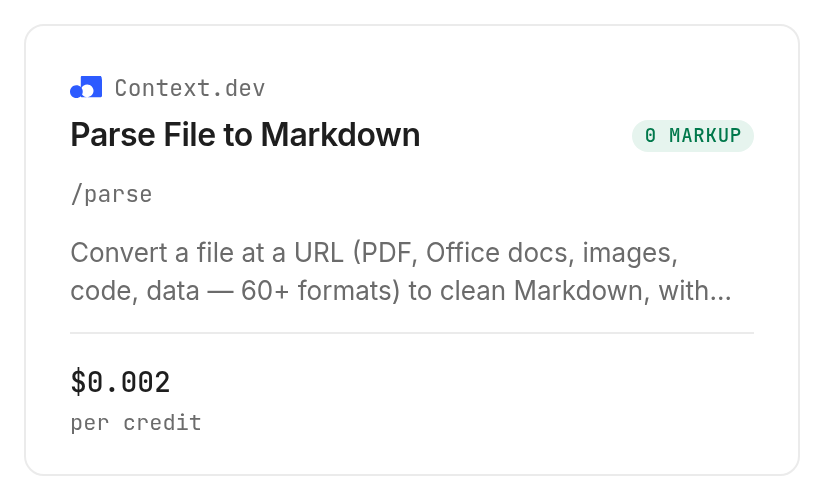
The document parsing tool lists $0.002 per credit, Verified 2026-11-08. Inspection specifies one base credit plus one credit for each page recovered by OCR, and enabling OCR holds 51 credits; a credit price is not a fixed price for every PDF.
Discovery and inspection are free. The inspected billing notes say failed and blocked requests consume no credits; treat that as the listed rule, while recording your own completed run's charge separately from its output quality.
Step 3. Review the declared response
What the service returns, according to its documentation: the table below describes declared fields, not results from a conversion run. The Context.dev response schema defines the provider response; Monid's inspection describes delivery as a downloadable Markdown artifact.
| Declared provider field | Meaning | Use in your review |
|---|---|---|
success | Success indicator | Check conversion outcome before accepting content |
markdown | Converted Markdown text | Review and save the document |
type | Detected content type | Compare with the expected file format |
request_id | Request identifier | Retain for tracing the conversion |
key_metadata | Usage metadata | Separate usage information from content |
The wrapper's inspection also names ocr_ran as an indicator of whether OCR ran. Keep that operational information separate from your own acceptance decision; it does not certify the extracted words.
Step 4. Save and compare the artifact
Download the Markdown artifact into your notes directory and retain the source reference beside it. Apply the five review steps above before treating the text as a reliable quotation source or importing it into an index.
When should you use something else?
Use a local conversion workflow when your files must stay on your machine. PyMuPDF4LLM supports Markdown extraction in Python and fits a project where you want to manage conversion in your own code.
Keep visual work in the source format
Use the original PDF when precise appearance is the deliverable. Edit the source document when your job is to change its layout, because an extracted Markdown file is a new representation of its content.
You're reading the Monid blog, and the hosted route here resells Context.dev conversion. Choose it for agent access through a shared tool interface; choose local extraction for control over local files and processing.
Choose the conversion route by job
| Use case | Best endpoint | Why? |
|---|---|---|
| Public PDF URL to a Markdown artifact | Context.dev /parse, inspect-only | File conversion with optional OCR; per credit, Verified 2026-11-08: $0.002 |
Conclusion
You now have a repeatable path from a PDF to editable notes: preserve the original, choose text extraction or OCR, save the Markdown, and record your review decision. Monid covers access to conversion, while your local workflow supplies saving and acceptance; the opening one-minute setup budget assumes you already have a key and excludes document review, so no hours-saved estimate is assigned. Choose the route that lets you trace every important statement back to its source.
FAQ
Is PDF to Markdown conversion free?
Discovery and inspection through Monid are free; conversion is billed. The current tool listing shows billing, and local software is a separate route with its own setup and processing work.
What do I need to install?
For the human workflow, install the Monid CLI and add your API key. For the agent workflow, provide the skill instructions and an accessible file URL, then approve the intended conversion settings.
Do I need to write code to convert a PDF?
You can ask an agent to handle the workflow without writing a conversion script. Specify the input, destination and review checks; the agent still needs access to save the resulting Markdown in your chosen location.
Can I convert a scanned PDF to Markdown?
The inspected converter offers OCR for scanned PDF pages. Enable it deliberately after reading the credit model, then compare recovered text with the source before using numbers or quotations in your notes.
How many PDFs can I convert at once?
The inspected request takes one file_url, not a list of files. Process a folder as separate requests and record a separate output and acceptance decision for each document.
Can I schedule PDF conversion?
Schedule your own script or agent workflow to submit new files and save their outputs. The inspected conversion input does not include a schedule; keep duplicate detection and review decisions in your own workflow.
Is converting a PDF to Markdown legal?
Rules vary by location; check the rules that apply to your documents and use. Access to a file does not by itself determine your permission to redistribute its converted text.
Published November 2026.