How to Use the Kling API in Your Agent
Prepare a Kling text-to-video request, understand its duration and resolution costs, and retrieve the finished video through your agent.
Give your agent a text prompt and retrieve a generated video. Paste this into your agent:
Set up https://monid.ai/SKILL.md, then use Monid to create a short Kling video from my prompt and retrieve the completed video URL.
One prompt starts the workflow.
Developers using the Kling API in an agent need more than a prompt: they need to submit a job, choose a duration between 3 and 30 seconds, and collect the video after generation finishes. A request that starts successfully is not yet a video your application can show.
Doing that by hand for every clip interrupts a script. A production workflow also needs a clear place to record the settings, wait for the job, retrieve the file, and review the result before anyone publishes it.
This guide uses Monid, the OpenRouter for agent tools, to show the request and the output fields declared by a stable Kling text-to-video tool. We'll choose the input, explain per-second billing, and show how to retrieve a finished job. This walkthrough is based on inspection rather than a generated sample because the tool bills per unit.
The inspected interface describes this deliverable:
| Item | Declared result |
|---|---|
| Video | outputs[].url, an MP4 link |
| Duration | Generated and billed durations |
| Link lifetime | 30 days |
This is a field preview, not a result from a live generation. Download and review the actual file returned by your own job.
How to use the Kling API with Monid
Use Monid to discover the Kling tool, inspect its input, and submit a text-to-video job with one key. An endpoint is a specific callable tool; here the endpoint accepts a scene description and returns a video job through the common Monid workflow.
Step 1. Set up your agent or CLI
For an agent, get a key at app.monid.ai and give the agent the setup instruction below. The agent quickstart explains the setup.
set up https://monid.ai/SKILL.md
For a human working in a terminal, install the CLI and add the key. The CLI quickstart covers the same setup.
npm install -g @monid-ai/cli
monid keys add --label main --key <your-api-key>
Keep the key out of scripts, shared prompts, and source control. The agent needs permission to use the key, while the prompt can describe the creative task without containing the credential.
Step 2. Find and inspect the tool
Search the catalog and inspect the exact Kling text-to-video tool before submitting a request. Discovery and inspection are free; a generation uses the rate shown by the tool.
monid discover -q "kling api"
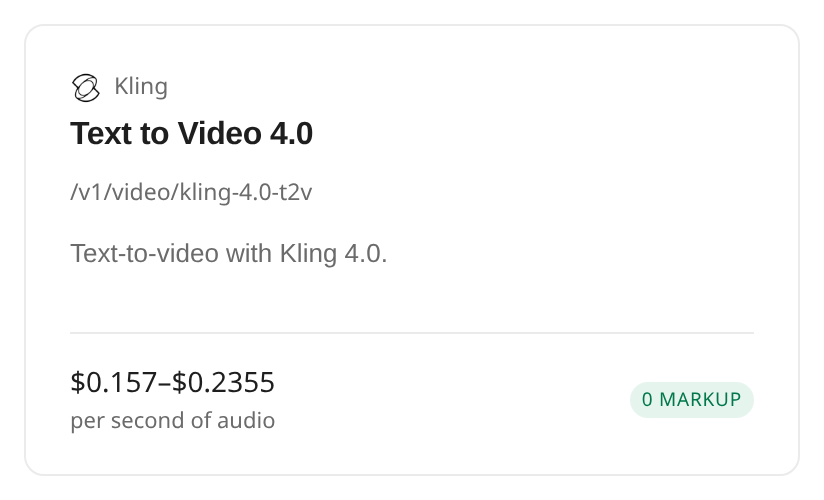
monid inspect -p kling -e /v1/video/kling-4.0-t2v
Read the status as well as the name. The catalog includes several Kling tools with different inputs, so a text-only task should use the text-to-video path rather than assuming that every Kling path accepts the same JSON. An inspection also shows the current duration range and allowed resolutions.
Step 3. Submit a small request
Start with a three-second clip at 720p and a specific scene. This example requests a ceramic cup on a wooden table, morning light, and a slow camera movement; it is a request you can adapt rather than a claim about a generated result.
monid run -p kling -e /v1/video/kling-4.0-t2v -i '{"prompt":"A ceramic cup on a wooden table in morning light. The camera moves slowly toward the cup.","resolution":"720p","aspect_ratio":"16:9","duration":3}'
The request contains prompt and resolution, the two required fields. It also makes the frame shape and duration explicit so the creative brief and the cost decision travel with the job. The command starts a paid generation; choose the settings before running it.
Step 4. Get the finished job
Keep the run ID returned by the CLI and use it to retrieve the job. Replace the illustrative ID below with the ID from your own request, and wait until the job completes before using its output.
monid runs get -r <run-id> -o kling-result.json
The inspected documentation describes an MP4 URL in outputs[].url and generation and billed durations. Save the JSON alongside your prompt and settings, then download the file before the declared 30-day link expires. The guide's output preview shows the documented fields, not a measured response.
How to choose the video settings
Choose settings from the intended destination and the amount of motion you need. Monid passes the request to the selected Kling tool, so the values in your JSON define both the creative envelope and the relevant price tier.
Write a scene that can be reviewed
A useful prompt specifies the subject, setting, action, camera, and sound. For example, describe a cup on a table and a slow push toward it rather than asking for an unspecified cinematic clip. Add a short statement of what must remain visible so a reviewer can compare the result to the brief.
Separate the request into visual facts and motion. A three-second shot has little room for several sequential actions, so use one clear action in the initial request. If the clip is for a campaign, keep a copy of the approved wording with the run ID; otherwise, it becomes difficult to identify which version produced a file.
The tool accepts an English prompt up to 26,000 characters, but the limit is a boundary, not a recommended prompt length. Short prompts are easier to review and revise. The inspect text gives a separate 11,000-character limit for non-English text and a combined rule for mixed text.
Match the frame to the destination
Choose 16:9 for a wide frame, 9:16 for a vertical frame, 1:1 for a square frame, or 21:9 for a wider cinematic frame. The default is 16:9 when the field is omitted. Explicitly setting the ratio avoids relying on a default when a downstream editor expects a particular shape.
Pick 720p or 1080p for resolution. Resolution changes the rate, while duration sets the number of requested seconds. The inspected tool does not offer 4K and always includes native audio, so a silent or 4K requirement needs a different workflow.
Keep the first clip short
The duration accepts an integer from 3 to 30 seconds and defaults to 5. Start at the minimum when testing an idea, review the result, and extend the request only after the framing and subject meet the brief. A longer request is a new creative decision as well as a larger billed duration.
A helpful production record contains the prompt, aspect ratio, resolution, requested seconds, run ID, review decision, and saved file location. Those are your own tracking columns, not a promise that the service returns each one. A brief with these choices also gives an agent enough context to ask for the right task before it submits a paid request.
How to retrieve and review a video
Retrieve the completed job, save the video, and review it against the prompt before using it. Monid exposes the run workflow, but choosing whether a clip is usable remains a creative and editorial decision.
Treat the URL as a delivery link
The inspect documentation describes outputs[].url as an MP4 link that expires after 30 days. Download the video to storage you control promptly rather than treating the temporary URL as a permanent asset. Retain the original job record with the downloaded file so you can trace the clip back to the request.
For the next stage, see the workflow for automating short-form AI video generation. A link in a completed response is a starting point for delivery, not proof that the clip meets the brief. Open the file, check that it plays, and compare its framing, subject, motion, and audio with the request. If the result is unsuitable, change the brief before submitting another paid generation.
Use a review checklist
Check whether the subject stays recognizable, the action fits the intended time, and the frame leaves room for any later text overlay. Listen to the native audio as well as watching the picture. A clip can be technically delivered while still needing editing or a new request.
Record the decision as accept, revise, or reject in your own workflow. An accept decision moves the file to the editor or publishing system; a revise decision should name the specific mismatch. This makes the next prompt a deliberate correction instead of a repetition of the same instructions.
For another video workflow, the Seedance API guide covers its own inputs and retrieval steps. Compare the requirements for each job rather than assuming that prompts, duration choices, and returned files have identical shapes across tools.
How much does a request cost?
The inspected Kling text-to-video tool bills per requested second, with the rate selected by resolution. On the Kling tool page, the inspected rates are $0.157 per second at 720p and $0.2355 per second at 1080p, Verified 2026-11-22. These are matrix rates, so they are written directly rather than as a single flat-price marker.
Calculate the request before submitting
Multiply the requested duration by the rate for the chosen resolution. For example, the listed three-second minimum at 720p corresponds to $0.471 at the stated rate, Verified 2026-11-22. That is a calculation from the inspected rate, not a measured charge from a generation. The tool's pricing notes say requested duration, not the output file's actual length, determines billed seconds.
Native audio is included in this tool's rate and cannot be switched off. Choosing a different frame shape does not appear as a pricing selector in the inspected matrix; resolution and requested duration are the settings to account for in this calculation. The current tool page and inspection are the place to check the rate before a run.
Plan for a failed or unsuitable clip
The inspect notes state that a failed or rejected task bills nothing. They also state that a delivered clip is billed even when it departs from the prompt. Those are the declared billing rules; this guide did not run a generation or measure a charge.
Set a budget for iterations, not just a single accepted clip. If a brief needs approval, obtain that approval before sending the request, and keep a record of each submission so a repeated prompt is not mistaken for a free preview. The distinction between a failed task and an unsatisfactory delivered file matters when estimating the cost of a sequence of revisions.
How to integrate the job into a script
Keep submission, waiting, retrieval, and review as separate stages. Monid supplies the discover, inspect, run, and run retrieval commands; your application decides when to initiate a job and where to store the finished asset.
Store the job context
Before submitting, save an internal job record containing the user's brief and the selected settings. After submission, associate the returned run ID with that record. That association lets a worker retrieve the correct result later and gives a reviewer the original instructions when the clip arrives.
Avoid blocking a user interface on a long generation. The inspected health information describes a typical run time of about five minutes, with a longer tail; this is catalog health information rather than a timing measured for this article. Show the job as pending until the retrieval step reports completion, then pass its output to the review stage.
Handle the result deliberately
Read the completion state before accessing the output. If the job failed, retain the failure details for diagnosis and do not pass an absent video to the next stage. If it completed, extract the documented URL from the returned output, download the file, and associate it with the job record.
Keep retry decisions explicit. A new generation can produce a new bill, so a worker should distinguish checking the existing run from submitting a fresh request. The agent integration guide gives a related example of putting a tool call into an agent workflow.
When should you use something else?
Use another route when your brief requires 4K, a silent output, or a completed edit rather than a generated clip. This is the Monid blog, and Monid routes the Kling tool described here; the inspected text-to-video tool is limited to 1080p and native audio is always on.
Choose the workflow around the constraint
An editor is the right next step when a campaign needs titles, cuts, approvals, and a final export. Generation supplies a clip for that process; it does not replace the review and assembly work. If an existing asset must be animated or edited, inspect a tool that accepts the relevant image or video input instead of sending that asset to this text-only request.
If your team needs to compare different ways of producing a video, the guide to choosing a Sora alternative frames the choice around the actual job. For a Kling-specific brief, start by writing down the frame, duration, audio, and delivery requirements; they reveal whether this particular tool fits before any request is submitted.
Which tool should you use?
Use the inspected text-to-video tool for a prompt-only clip within its stated limits. The table names the single tool covered by this guide, rather than treating other catalog entries as tested alternatives.
| Use case | Best endpoint | Why? |
|---|---|---|
| Text prompt to video | kling /v1/video/kling-4.0-t2v | Supports 3 to 30 seconds, 720p or 1080p, and native audio. $0.157 or $0.2355 per requested second, respectively, Verified 2026-11-22. |
Inspect the Kling tool again for current settings and rates. This article did not run the endpoint because its per-unit billing exceeds the testing rules for this guide.
Conclusion
You now have a concrete request, a way to retrieve the job, and a checklist for saving and reviewing the declared MP4 output. Keep the brief, settings, and run ID together, check the current rate, and start with a short clip so each iteration has a clear purpose. That gives your team a repeatable path from a written scene to a reviewed video asset.
FAQ
Can I use the Kling API for free?
Discovery and inspection are free; generation through the described tool is billed per requested second. The Kling tool page lists current rates.
What do I need to install?
You can install the Monid CLI or give a configured agent the Monid skill and a key. The CLI commands above show both the installation and key setup.
Do I need to write code?
No. An agent can follow the plain-language prompt at the top, while a developer can use the CLI commands in a script. Review the settings before authorizing a generation.
How long can a video be?
The inspected text-to-video tool accepts an integer duration from 3 to 30 seconds. It defaults to 5 seconds when you omit the field.
Does a failed generation cost anything?
The inspected billing notes say failed or rejected tasks are not billed. A delivered clip is billed even if it does not match the prompt; this guide did not independently measure a charge.
Can I run video generation on a schedule?
A script can initiate the same request on a schedule you control. Store each run ID and budget for every new generation, rather than confusing a status check with a new request.
How long does the video link last?
The inspected documentation says the MP4 link expires after 30 days. Download the finished file and keep it in your own storage.
Published November 2026.