How to Use the Chase Mortgage Home Value Estimator
Check Chase's home estimate, separate it from listing prices, and build a dated property review sheet with missing values kept visible.
Check a home estimate without confusing it with a listing price. Paste this into your agent:
Set up https://monid.ai/SKILL.md, and then use Monid to inspect Zillow property details for the property IDs I provide. Explain the price before retrieving one record. Keep my Chase estimate separate, preserve null values, and produce a dated review sheet without contact details. Never label a Zillow value as a Chase estimate.
Inspect first, retrieve one property second. No min setup or hrs saved estimate is claimed.
As a homeowner or buyer's agent using the chase mortgage home value estimator, you face a basic reporting problem: one number does not explain a home's condition, the seller's position or the lender's decision. Copying that number into a sheet loses its context unless you also preserve its source and date.
Opening more property tabs does not solve the labeling problem. A listing price, an automated estimate and a professional valuation answer different questions, even when all three describe the same home.
We'll build a review sheet that keeps those distinctions visible, then use Monid, the tool layer for AI agents, to retrieve supporting property facts. The tools below cover property research; they do not retrieve Chase's estimate or make a mortgage decision. First identify the home, then label the evidence, then choose the next review action.
Here is the real lookup's result preview, collected November 5, 2026. The address and property identifier are omitted; the review action is our editorial interpretation.
| Review dimension | Returned observation | Next action |
|---|---|---|
| Records retrieved | 1 | Check identity in your private worksheet |
| Home type | SINGLE_FAMILY | Compare with the same property type |
| Listing status | FOR_SALE | Keep asking price separate |
| Zestimate | null | Leave estimate empty |
| Rent Zestimate | null | Leave rental estimate empty |
What does the chase mortgage home value estimator tell you?
The Chase estimator gives you a starting estimate for a home, rather than a complete property evaluation. Chase's estimator page describes entering an address or ZIP Code and using home records to generate an estimate.
Start at the named source
Open Chase's own estimator page, enter the home's street address, city and state, and follow the tool's prompts to select the matching property. Record the displayed estimate, its source link and your collection date in your private worksheet. Use Chase's own page when your question is specifically about Chase's figure. A value retrieved from Zillow belongs in a Zillow column, even when you searched for Chase first. Naming the source correctly matters more than making every row look complete.
Define the question before collecting numbers
Write down whether you are checking an owner's rough expectation, preparing a buyer's shortlist or gathering questions for a local professional. That purpose determines what supporting evidence belongs beside the estimate. It also tells you when the worksheet is finished: when it explains the next step, rather than when every cell contains a number.
The same distinction applies when discussing an automated valuation model for homes. A model produces an estimate; collecting that estimate does not reproduce the model or validate the property.
Why separate a home estimate from a mortgage decision?
A research estimate and a financing decision serve different jobs. Keep your worksheet focused on organizing evidence, and use your lender for the decision about the actual loan.
Label every kind of value
Create separate columns for a source's automated estimate, a seller's asking price and any professional valuation you receive. Do not put them into a shared “home value” column. A colleague reading that column later would have to guess what the number represents.
Also keep collection time separate from the date of a sale or valuation. The day you downloaded a record is your observation date. It is not proof that every field in the record was updated that day.
Treat disagreement as a research question
When two sources disagree, record both sources before calculating a difference. Check that the records describe the same unit, home type and living area. Then assign a specific review task, such as confirming a renovation or asking about nearby completed sales.
For a broader discussion of valuation methods, Chase's property-value guide describes appraisals, comparative market analysis and comparable properties. It supports using multiple kinds of evidence rather than treating one online figure as the whole answer.
How to prepare a home-value comparison in five steps
Build the worksheet before you automate collection. These five steps work whether you collect a value manually or retrieve supporting facts through a tool.
Step 1. Identify the exact home
Confirm the address, unit and property type in your private working record. Use a local reference in shared reports so you can discuss the research without publishing a household's address.
Step 2. Record the source and date
Store the source page beside each collected value, together with the collection date. Preserve the original label so that a later reader can distinguish an estimate from an asking price.
Step 3. Add the facts you need to compare
Choose a small set of facts that help establish comparability: home type, bedrooms, bathrooms and living area. Do not add columns just because a response contains them; choose facts that change your next research step.
Step 4. Mark missing evidence explicitly
Use an empty value plus a status such as “estimate absent” when the source supplies no estimate. Keep that different from a request that failed and from a lookup you have not attempted.
Step 5. Assign the next action
Finish each row with a concrete task and an owner. “Confirm living area” is actionable; “looks low” records an impression without explaining what anyone should do next.
For a buyer's shortlist, this produces a compact handoff to the agent responsible for property review. For an owner, it produces a list of questions to bring to a local professional. For a recurring research process, it creates a record of what changed between observations without rewriting the original evidence.
How to check the property facts with Monid
Use Monid for the supporting lookup when your workflow already has a confirmed Zillow property ID. An endpoint is a specific callable tool: here, the tested Zillow property-details lookup retrieves one property record.
Step 1. Set up access
For agents: get an API key at app.monid.ai, then give your agent the setup instruction below. The agent quickstart describes the workflow.
set up https://monid.ai/SKILL.md
For humans: install the CLI and add your key using the documented commands. The CLI quickstart covers account setup.
npm install -g @monid-ai/cli
monid keys add -k <your-api-key> -l main
Step 2. Give your agent one confirmed identifier
Supply the numeric Zillow property ID from the home you have already matched, and ask for one lookup first. Set a small limit when testing a list; for this single-record tool, that means supplying only one identifier and stopping after its response.
Step 3. Inspect before retrieving
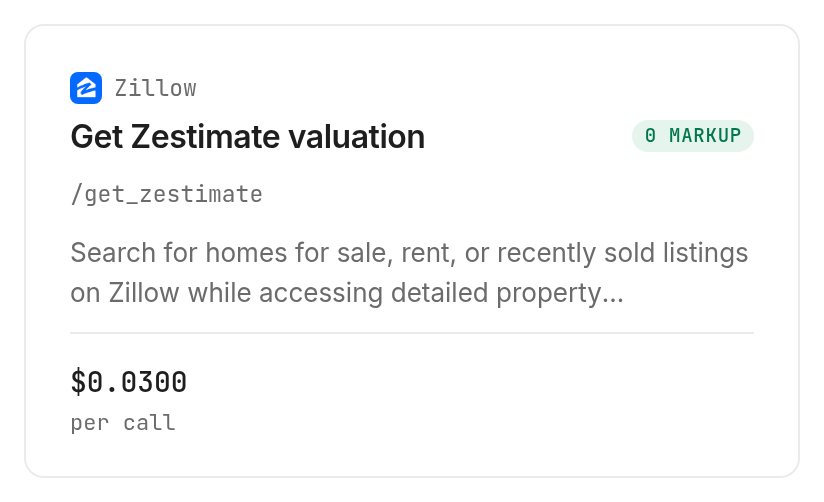
Ask the agent to inspect the property-details tool and state its billing shape before making a paid request. The separate Zillow Zestimate lookup takes a zpid too, but it is a different tool with a different price; selecting it must be a deliberate choice.
Step 4. Export the returned facts
Ask for a CSV with your local reference, collection time, home type, listing status, bedrooms, bathrooms, living area and estimate availability. Preserve the original response privately, and keep your review notes in separate columns.
For developers, these are the discovery, inspection and paid lookup commands used for the supporting record. The example identifier is from the inspected input documentation; match your own property before reusing it.
monid discover -q 'home valuation property zestimate' -l 12 --include-unavailable -j
monid inspect -p zillow -e /get_property_details -j
monid run -p zillow -e /get_property_details --query '{"zpid":"29505949"}' -w
The request completed with HTTP 200 and one result. Its elapsed time from creation to completion was 4.75 seconds, measured from the returned timestamps. That is one observation, not a completion-time promise for future requests.
How do you read missing estimates and property details?
Read missing estimates as missing evidence. The successful property-details response contained useful home facts while both estimate fields were null.
Keep the returned facts useful
The following table contains selected fields from the same real record. It excludes the address, identifier, coordinates and description, and it does not add a calculated valuation.
| Returned field | Observed value |
|---|---|
| homeType | SINGLE_FAMILY |
| homeStatus | FOR_SALE |
| bedrooms | 3 |
| bathrooms | 3 |
| livingArea | 1398 |
| yearBuilt | 1984 |
| zestimate | null |
| rentZestimate | null |
These facts support identity checking and comparison preparation. They do not supply the missing Chase value. The practical conclusion is to retain the row for research, leave the estimate cells empty and assign the valuation question to the appropriate source.
Keep null different from zero
Do not replace null with zero, carry forward an old estimate without its date or substitute the listing price. Each substitution makes a complete-looking sheet by changing the meaning of its evidence.
Zillow explains that its estimate is a starting point and does not replace an appraisal. For the interpretation step after you obtain an actual value, our guide to checking a Zestimate before comparing homes develops that distinction further.
A recurring workflow should preserve both the response status and the field status. “Request completed” tells you the retrieval succeeded. “Estimate absent” tells you the specific evidence you wanted is still missing. Keeping both statuses prevents a successful technical request from being reported as a finished valuation task.
How much does a property lookup cost?
The tested Zillow property-details request costs $0.01 per call, Verified 2026-11-05. Our one completed request was billed once at that amount despite the null estimate fields.
The separately inspected Zillow estimate tool costs $0.03 per call, Verified 2026-11-05. It was inspected only for this guide; no paid estimate request was made.
Discovery and inspection are free; a paid retrieval uses your shared balance. Consult the current tool catalog when planning the next batch. A successful property response without an estimate is still a completed call, as this test demonstrates. This test does not establish billing behavior for failures or missing properties.
Start with one correctly matched property, inspect the response and decide whether it answers your research question before expanding. Do not spend on an extra tool simply because a cell is empty. First determine whether that tool retrieves the kind of evidence your worksheet actually needs.
Which property lookup fits your next task?
Choose the narrowest tool that supplies the evidence you need. These two Monid tools have different roles, and neither is a Chase estimate service.
| Use case | Best endpoint | Why? |
|---|---|---|
| Supporting facts for one matched home | Zillow /get_property_details, tested | One record returned; estimates null; per call, Verified 2026-11-05, $0.01 |
| Separate Zillow sale and rent estimate lookup | Zillow /get_zestimate, inspect only | Description identifies those estimates; requires zpid; per call, Verified 2026-11-05, $0.03 |
The inspected estimate tool publishes its required input and a description of the returned information. It does not provide an output schema in the inspection response used here, so this guide supplies no invented example JSON for it.
When should you use something else?
Use Chase directly when the deliverable is Chase's own home-value estimate. Use a local agent's comparative market analysis when you need a discussion grounded in comparable properties, and use a professional appraiser when you need that professional evaluation.
You are reading the Monid blog, and we provide access to third-party tools. Our tested lookup adds supporting facts to your workflow; it does not certify a home's condition, supply Chase's calculation or decide what a lender will accept.
For one occasional home check, opening the named source directly is a straightforward route. Tool-based retrieval earns its place when you need a repeatable record inside an agent or script and can manage source labels, missing fields and follow-up review.
Conclusion
You now have a repeatable process for separating Chase's estimate, supporting property facts and your own review decisions. The real lookup produced one useful property record with two missing estimates, so the completed research sheet must preserve that gap rather than fill it with a listing price. No setup-time or hours-saved estimate is claimed because this test measured retrieval only. Keep the source, date and next action together so your next property conversation starts with clear evidence.
FAQ
Does this retrieve Chase's estimate?
No. These tools retrieve Zillow data.
Is inspection free?
Yes. Discovery and inspection are free; retrieval is paid.
Do I need to code?
No. Use the opening agent prompt.
How many homes were tested?
One home and one details request.
Are null estimates free?
No. This call was billed.
Is an estimate an appraisal?
No. An estimate is not an appraisal.
What rules apply?
Rules vary by location; check yours.
Published November 2026.